Is your Android phone constantly showing “Storage Almost Full” warnings? You’re not alone. Whether you have 32GB or 128GB of storage, it can fill up faster than you expect — especially with apps, photos, videos, and cached data piling up over time.
The good news? You don’t need to delete your favorite apps or buy a new phone. These 10 simple tips will help you reclaim storage space quickly and keep your phone running smoothly.
Why Does Android Storage Fill Up So Fast?
Before diving into the tips, it helps to understand what’s eating your storage:
- App cache — Every app stores temporary data to load faster. This can grow into GBs over time.
- Duplicate photos & videos — Screenshots, WhatsApp media, and downloaded files pile up silently.
- Unused apps — Apps you installed once and forgot still take up space.
- Offline downloads — Music, videos, and maps downloaded for offline use stay saved forever unless deleted.
Now let’s fix it.
1. Check What’s Eating Your Storage First
Before deleting anything randomly, find out exactly where your storage is going.
How to do it:
- Go to Settings
- Tap Storage (or Device Care > Storage on Samsung)
- You’ll see a breakdown — Apps, Images, Videos, Audio, Documents, and Other
This gives you a clear picture of what to target first.
2. Clear App Cache (Not App Data)
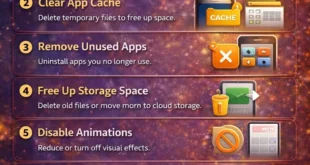
App cache is temporary data stored by apps to load faster. It’s safe to delete and rebuilds automatically.
How to clear cache for one app:
- Go to Settings > Apps
- Select any app (e.g., Chrome, YouTube, Facebook)
- Tap Storage > Clear Cache
⚠️ Don’t confuse Cache with Data. Clearing Data will log you out and delete saved settings. Clearing Cache is completely safe.
Pro Tip: On Android 12 and above, go to Settings > Storage > Free Up Space — Android will automatically suggest cache and junk files to delete.
3. Delete Downloaded Files & Documents
Your Downloads folder is often filled with files you’ve forgotten about — APKs, PDFs, ZIP files, and documents you only needed once.
How to check:
- Open the Files app (or My Files on Samsung)
- Tap Downloads
- Sort by Size — delete the biggest files first
You’ll often find old APK installers taking up hundreds of megabytes here.
4. Clean Up WhatsApp & Telegram Media
Messaging apps are one of the biggest storage killers. Every photo, video, voice note, and GIF gets auto-saved to your phone.
For WhatsApp:
- Open WhatsApp > tap the three-dot menu > Settings
- Go to Storage and Data > Manage Storage
- You’ll see which chats are using the most space — delete media you don’t need
For Telegram:
- Go to Settings > Data and Storage > Storage Usage
- Tap Clear Cache and delete downloaded files by chat
5. Move Photos & Videos to Google Photos
Google Photos offers free unlimited storage for photos backed up in “Storage Saver” quality. Once backed up, you can safely delete local copies.
How to do it:
- Install Google Photos (if not already installed)
- Let it back up your entire gallery
- Tap Library > Free Up Space — it will delete photos already backed up from your device
This alone can free up several gigabytes instantly.
6. Uninstall Apps You No Longer Use
Go through your app list and be honest — when did you last open that fitness app or that game you downloaded in 2023?
How to find unused apps:
- Go to Settings > Apps
- Sort by Last Used (available on Android 11+)
- Uninstall anything you haven’t opened in 3+ months
Bonus: On Android 11 and above, you can enable Auto-archive unused apps — Android will automatically remove apps you haven’t used in a while but keep your data.
7. Use Lite Versions of Heavy Apps
Some apps like Facebook, Instagram, and Spotify have lightweight “Lite” versions that take up far less space and use less RAM.
| App | Regular Size | Lite Version Size |
|---|---|---|
| ~200 MB | ~5 MB | |
| Messenger | ~150 MB | ~3 MB |
| Spotify | ~100 MB | ~15 MB |
Search for “[App Name] Lite” on the Play Store and switch to the lighter version.
8. Delete Offline Downloads (Spotify, YouTube, Netflix)
If you’ve downloaded songs, podcasts, or videos for offline use, they’re sitting on your phone taking up space — even if you’ve already watched or listened to them.
- Spotify: Settings > Storage > Delete Cache, or remove individual downloaded playlists
- YouTube: Library > Downloads > remove videos you’ve watched
- Netflix: Downloads section — delete anything you’re done with
9. Use a microSD Card (If Your Phone Supports It)
Many mid-range Android phones have a microSD card slot. Adding a 64GB or 128GB card can massively expand your storage for a low cost.
What you can move to SD card:
- Photos and videos
- Downloaded music
- Some apps (Settings > Apps > select app > Storage > Change)
⚠️ Not all apps support moving to SD card, and moving system apps isn’t recommended.
10. Factory Reset as a Last Resort
If your phone is severely cluttered and none of the above tips are enough, a factory reset will wipe everything and give you a fresh start.
Before you reset:
- Back up contacts, photos, and app data
- Note down important passwords and accounts
How to reset:
- Go to Settings > General Management (or System)
- Tap Reset > Factory Data Reset
- Follow the on-screen steps
This should only be done as a last resort, but it is guaranteed to free up all your storage.
Quick Summary Table
| Tip | Estimated Space Saved | Difficulty |
|---|---|---|
| Clear app cache | 500MB – 2GB | ⭐ Easy |
| Delete downloads | 200MB – 1GB | ⭐ Easy |
| Clean WhatsApp media | 1GB – 5GB | ⭐ Easy |
| Move photos to Google Photos | 2GB – 20GB | ⭐⭐ Medium |
| Uninstall unused apps | 500MB – 3GB | ⭐ Easy |
| Switch to Lite apps | 300MB – 1GB | ⭐⭐ Medium |
| Delete offline downloads | 500MB – 5GB | ⭐ Easy |
| Add microSD card | Unlimited | ⭐⭐⭐ Requires hardware |
Final Thoughts
You don’t need to spend money or delete everything you love to free up space on Android. Start with the easiest wins — clear your cache, delete Downloads, and clean up WhatsApp media. Then back up your photos to Google Photos and uninstall apps you haven’t touched in months.
Do all of this regularly (once a month is ideal) and your phone will stay fast, clean, and frustration-free.